

Deploying and Customizing Extensions in MAS 9: The Customization Archive
Part 5 of the MAS JAVA EXTENSIONS series. This is the part that changed. The extension model — MBOs, sets, Remote interfaces, product.xml, PLUS chains — is exactly as it was. But how you ship it is completely different. In 7.6 you dropped a JAR and rebuilt an EAR. In MAS 9 you build an archive and bake it into an image.
🎯 Who this is for: Maximo developers, DevOps engineers, and upgrade teams who have deployed custom Java the 7.6 way and need to know exactly how add-ons are activated in MAS 9, what the Customization Archive is, and how to package their own extensions so they survive upgrades.
Estimated read time: 22 minutes
🌍 The Old World vs the MAS World
You know the old ritual by heart. You wrote a custom PlusMboSet, compiled it, and dropped the JAR (or the loose .class files) into the SMP folder — maximo/applications/maximo/businessobjects/classes. You ran buildmaximoear, watched it churn, and produced a fresh maximo.ear. Then you deployed that EAR to WebSphere, restarted the application server, and prayed the class hierarchy resolved the way you expected. Every developer's laptop had a slightly different SMP. Every environment's EAR was, at some level, a hand-built artifact.
That entire flow is gone in MAS 9. There is no SMP folder. There is no buildmaximoear. There is no WebSphere to deploy to. Everything is containerized, and the container image is built for you by a Kubernetes operator running on Red Hat OpenShift. Your custom Java does not get copied onto a running server — it gets baked into an image that every pod then runs identically.
This is jarring the first time you meet it, because it feels like your customization workflow was taken away. It was not. It was replaced with something more reproducible. The mental model to hold onto is this: in 7.6 you deployed code to a server; in MAS 9 you contribute code to a build. Once that clicks, everything else in this post follows.
💡 Key insight: The extension architecture did not change — the delivery mechanism did. Your product.xml, your DBC scripts, your MBO classes are the same files you have always written. What changed is that they now flow into an image build owned by an operator, not a file copy onto a WebSphere node.📦 How Add-Ons Are Delivered and Activated
Before your custom code, understand how IBM's add-ons get there — because your archive rides the exact same machinery.
In MAS 9, add-ons are selected during Manage activation, not installed separately. There is no separate installer for Transportation, no independent "apply Spatial" step. You pick the components you want as part of activating Manage:
MAS Suite Administration → Manage → Activate → Components SectionYou select which components — industry solutions plus add-ons — to include, and the MAS Manage operator does the rest:
- Generates the admin image with the selected components
- Builds server bundle images (Liberty servers) with the correct class hierarchy
- Runs
updatedb/maxinstto process theproduct.xmlfiles and DBC scripts - Starts Liberty servers with the built images
- Makes routes available for user connections
Notice step 3: this is the same updatedb/maxinst that has always processed product.xml and DBC. The chain-building process you learned in Part 3 has not changed — it is just running inside an operator-driven image build instead of on a server you can SSH into.
If you prefer the CLI, components are specified as a single flag:
mas install --manage-components 'base=latest,health=latest,spatial=latest,transportation=latest'The available component names map directly to the PLUS registry from Part 2:
| Component | What it is |
|---|---|
| base | Core Manage |
| health | Maximo Health (as a Manage add-on in 9.1) |
| acm | Asset Configuration Manager |
| aviation | Aviation |
| civil | Civil Infrastructure |
| hse | HSE |
| nuclear | Nuclear |
| oilandgas | Oil & Gas |
| serviceprovider | Service Provider |
| spatial | Spatial |
| transportation | Transportation |
| utilities | Utilities |
Server bundles: where your classes actually run
MAS 9 does not run one monolithic JVM. It uses server bundles to isolate workloads, each getting its own pod(s) with independent scaling:
| Bundle Type | Purpose | Runs |
|---|---|---|
| all | Combined workload (dev/small environments) | UI + MEA + Cron + Report |
| ui | User interface workload | Browser-facing applications |
| mea | Integration workload (MIF/MEA) | Inbound/outbound integrations |
| cron | Background task workload | Cron tasks, escalations |
| report | Reporting workload | BIRT/Cognos report generation |
Here is the part that matters for extensions: the Java extensions — your PLUS classes and IBM's — are included in all bundles. They contain business logic that any workload might need, so a WOSet extension is present in the ui pod, the mea pod, and the cron pod alike. You do not choose where your class lands; it lands everywhere, because the inheritance chain is a property of the image, not of the workload.
🗜️ What the Customization Archive Is
Now to your own code. In Maximo 7.6 you dropped custom Java into the SMP folder. In MAS 9, with no SMP folder to drop into, IBM gives you a single, self-contained deliverable: the Customization Archive.
It is a ZIP/JAR file containing everything your extension needs:
- Custom Java class files
- A custom
product.xml - Custom DBC scripts
- Custom application XML definitions
- Custom JSPs (if any survive)
That list should look familiar — it is precisely the set of files a 7.6 customization spread across the SMP tree, gathered into one packaged artifact. The archive is the unit of deployment.
The deployment process is deliberately simple:
- Build your Customization Archive
- Upload it to a URL accessible from the OpenShift cluster
- Reference the URL during Manage activation
- The operator layers the archive over the base Manage image
updatedbprocesses yourproduct.xmlalong with IBM'sproduct.xmlfiles- Your extensions are wired into the inheritance chain
Steps 3 is where you connect your artifact to activation, via two parameters:
--manage-customization-archive-name "my_customizations"
--manage-customization-archive-url  "https://storage.example.com/my_customizations.zip"
Read step 4 carefully, because it is the whole point. The operator layers your archive over the base Manage image — it does not modify a running server. Your product.xml is then processed alongside IBM's during updatedb, which means your extensions slot into the same chain-resolution process that stitches PLUST, PLUSG, and PLUSS together. Your custom class ends up in MAXOBJECT.CLASSNAME exactly the way an add-on's would, because it went through exactly the same machinery.
💡 Key insight: The Customization Archive is not a new place to put files — it is the same files (Java, product.xml, DBC, app XML) repackaged as one artifact that the operator layers into the image build. The archive is to MAS 9 what the SMP folder plus buildmaximoear were to 7.6, minus the hand-assembly.🛠️ Building Your Own Add-On
You do not hand-craft the archive's structure. IBM provides the masmanagedev-cli tool for developing custom extensions, and the workflow is three commands:
# Create a new add-on product
masmanagedev-cli create product

# Initialize Java support
masmanagedev-cli init java

# Build the customization archive
gradle build
Each step earns its place:
- `masmanagedev-cli create product` scaffolds a new add-on product with the correct
product.xmlstructure. This is the file that declares your services, MBOs, beans, and fields — the control file from Part 3 — and getting its structure right by hand is exactly the kind of error the tool eliminates. - `masmanagedev-cli init java` initializes Java support in the project, wiring in the compile configuration and dependencies your MBO classes need.
- `gradle build` produces the archive. Gradle handles building the artifact you will upload and reference at activation.
A few considerations you must plan around:
| Concern | Detail |
|---|---|
| Compile target (9.0) | MAS 9.0 uses Java 11 for compilation |
| Compile target (9.1+) | MAS 9.1 (June 2025 onward) requires Java 17 for compilation |
| product.xml structure | The tool creates the correct structure — do not hand-edit blindly |
| Archive build | Gradle builds the archive; treat it as a CI/CD artifact |
That Java 11 → Java 17 jump is not a footnote; it is the subject of Part 6. If your environment is on 9.1 or later, your customization archive must compile on Java 17, and some 7.6-era code will not do so without change.
IBM's strategic direction
While we are here, one thing IBM is unambiguous about: convert custom Java MBOs to Automation Scripts wherever possible. The Customization Archive exists and is fully supported, but IBM would rather you did not need it for most logic. Their guidance ranks customization approaches like this:
| Approach | IBM Recommendation | When acceptable |
|---|---|---|
| Automation Scripts (Jython/JS) | PREFERRED — primary customization mechanism | Always — use for most business logic |
| Custom Java MBOs | DISCOURAGED — anti-pattern for cloud-native | Only when scripts genuinely cannot meet the requirement |
| Database triggers | PROHIBITED — will not work in managed/SaaS deployments | Never |
| Direct SQL | PROHIBITED — sealed database in managed deployments | Never in managed; avoid in self-managed |
| MIF Exit classes | TOLERATED — still supported | When integration needs MIF-specific processing; consider REST alternatives |
The takeaway is not "never write Java." It is "reach for a Java MBO only when an Automation Script genuinely cannot express the requirement." Every class you keep out of the archive is a class you never have to recompile for the next JVM.
🔒 Why Container-Image Packaging Is Upgrade-Safe
The old way had a quiet, corrosive problem: drift. Because the EAR was assembled from an SMP folder that lived on a build machine, no two environments were provably identical. A class that was present in dev might be missing in prod because someone forgot to copy it. An EAR rebuilt six months apart could differ in ways nobody could fully reconstruct. Upgrades were tense because you were never quite sure what was actually deployed.
Container-image packaging removes that entire failure class:
- Reproducible. The image is built from declared inputs — the selected components plus your archive at a known URL. Rebuild it tomorrow and you get the same image. There is no hidden SMP state.
- Versioned. The archive is a discrete artifact with a name and a URL. You can version it, store it, roll back to it, and know precisely what a given deployment contains.
- Identical everywhere. Every pod runs the same image. The
uipod and thecronpod are not "mostly the same" — they are byte-for-byte the same extension code. Drift between nodes is structurally impossible. - Upgrade-safe. When IBM ships a new base image, the operator re-layers your archive over it. Your customization is not entangled with the base install; it is a layer on top, re-applied cleanly. Provided you followed the discipline — do not modify IBM-delivered objects, keep your logic in your own PLUS namespace — your archive rides the upgrade instead of blocking it.
This is the real payoff of losing the SMP folder. What felt like a loss of control is actually the elimination of the thing that made 7.6 upgrades risky: untracked, hand-assembled deployment state.
🤝 The New Division of Labor
The last thing that changes is not technical — it is organizational. In 7.6, one person often owned everything from the Java class to the WebSphere restart. In MAS 9, the work splits along the same seam that runs through the whole platform.
| Concern | MAS Platform Team | Maximo Customization Team |
|---|---|---|
| OpenShift cluster & operators | ✅ Owns | |
| Manage activation & component selection | ✅ Owns | Requests components |
| Server bundle sizing & scaling | ✅ Owns | |
| Archive name/URL wired at activation | ✅ Applies | Provides the artifact |
| The Customization Archive itself | ✅ Owns | |
| Custom product.xml, MBO classes, DBC | ✅ Owns | |
| masmanagedev-cli + gradle build | ✅ Owns | |
| Java 17 compile compliance | ✅ Owns |
The MAS platform team owns the environment: the cluster, the operators, the activation of Manage, which components are selected, how the server bundles are sized, and the mechanics of pointing activation at your archive URL. They run mas install; they do not write your WOSet.
The Maximo customization team owns the code: the archive, its product.xml, the MBO classes, the DBC scripts, and getting it all to compile on the right Java version. They run masmanagedev-cli and gradle build; they do not manage OpenShift.
The handoff between them is the archive URL. The customization team builds and publishes the artifact; the platform team references it at activation. Get that contract right — a versioned archive at a reachable URL, referenced by name — and the two teams can move at their own pace without stepping on each other. This is the same admin split covered in the Manage configuration and administration guide, applied specifically to custom Java.
💡 Key insight: The archive URL is the interface between two teams. The customization team produces a versioned artifact; the platform team consumes it at activation. Treat that URL like an API contract and the organizational seam becomes a strength, not a bottleneck.
📊 Old Way vs MAS 9: The Side-by-Side
Everything in this post, condensed:
| Concern | Maximo 7.6 (Old World) | MAS 9 (MAS World) |
|---|---|---|
| Where custom Java goes | SMP folder (businessobjects/classes) | Customization Archive (ZIP/JAR) |
| Build step | buildmaximoear → maximo.ear | masmanagedev-cli + gradle build |
| Deployment target | WebSphere application server | Container image on OpenShift |
| How it activates | Deploy EAR + restart app server | Operator layers archive over base image |
| Add-on install | Separate installer per add-on | Selected at Manage activation (--manage-components) |
| Chain build | updatedb/maxinst on server | updatedb/maxinst in operator image build |
| Where classes run | One JVM | All server bundles (ui/mea/cron/report) |
| Reproducibility | Hand-assembled, drift-prone | Declared inputs, byte-identical pods |
| Upgrade behavior | Re-merge into new SMP by hand | Archive re-layered over new base image |
| Compile target | Java 8 | Java 11 (9.0) → Java 17 (9.1+) |
The model on the left and the model on the right are the same architecture. Only the delivery column changed — and it changed in the direction of reproducibility.
Key Takeaways
- There is no SMP folder in MAS 9. Custom Java is packaged as a Customization Archive — a ZIP/JAR of your class files,
product.xml, DBC scripts, app XML, and any surviving JSPs — and baked into a container image by the Manage operator. - Add-ons are selected during Manage activation, not installed separately: via the Components section in Suite Administration or
--manage-components 'base=latest,health=latest,…'. The operator generates the admin image, builds server-bundle images, runsupdatedb/maxinst, and starts Liberty. - You build your own add-on with three commands:
masmanagedev-cli create product,masmanagedev-cli init java, thengradle build. Compile on Java 11 for 9.0, Java 17 for 9.1+. - Reference the archive at activation with
--manage-customization-archive-nameand--manage-customization-archive-url; the operator layers it over the base image and processes yourproduct.xmlalongside IBM's, wiring you into the inheritance chain. - Container-image packaging is reproducible and upgrade-safe — declared inputs, versioned artifacts, byte-identical pods, and a base image that re-layers your archive cleanly on upgrade.
- The work splits: MAS platform teams own activation and operators; Maximo customization teams own the archive and its Java. The archive URL is the contract between them.
References
- IBM Maximo Application Suite Documentation
- Customizing Maximo Manage — IBM Documentation
- Building a Manage customization archive — IBM Documentation
- Maximo Business Object (MBO) development — IBM Documentation
Series Navigation
| Previous: | Part 4 — Database Footprint, Add-Ons, and the Compatibility Matrix |
|---|---|
| Next: | Part 6 — Java 17 and the Future of Maximo Extensions |
About TheMaximoGuys: We are practitioners who implement IBM Maximo across asset-intensive industries. We build and ship Customization Archives for a living, and this part is the packaging playbook we hand new developers on day one.
Published by TheMaximoGuys | July 2026
 Venkat Achanta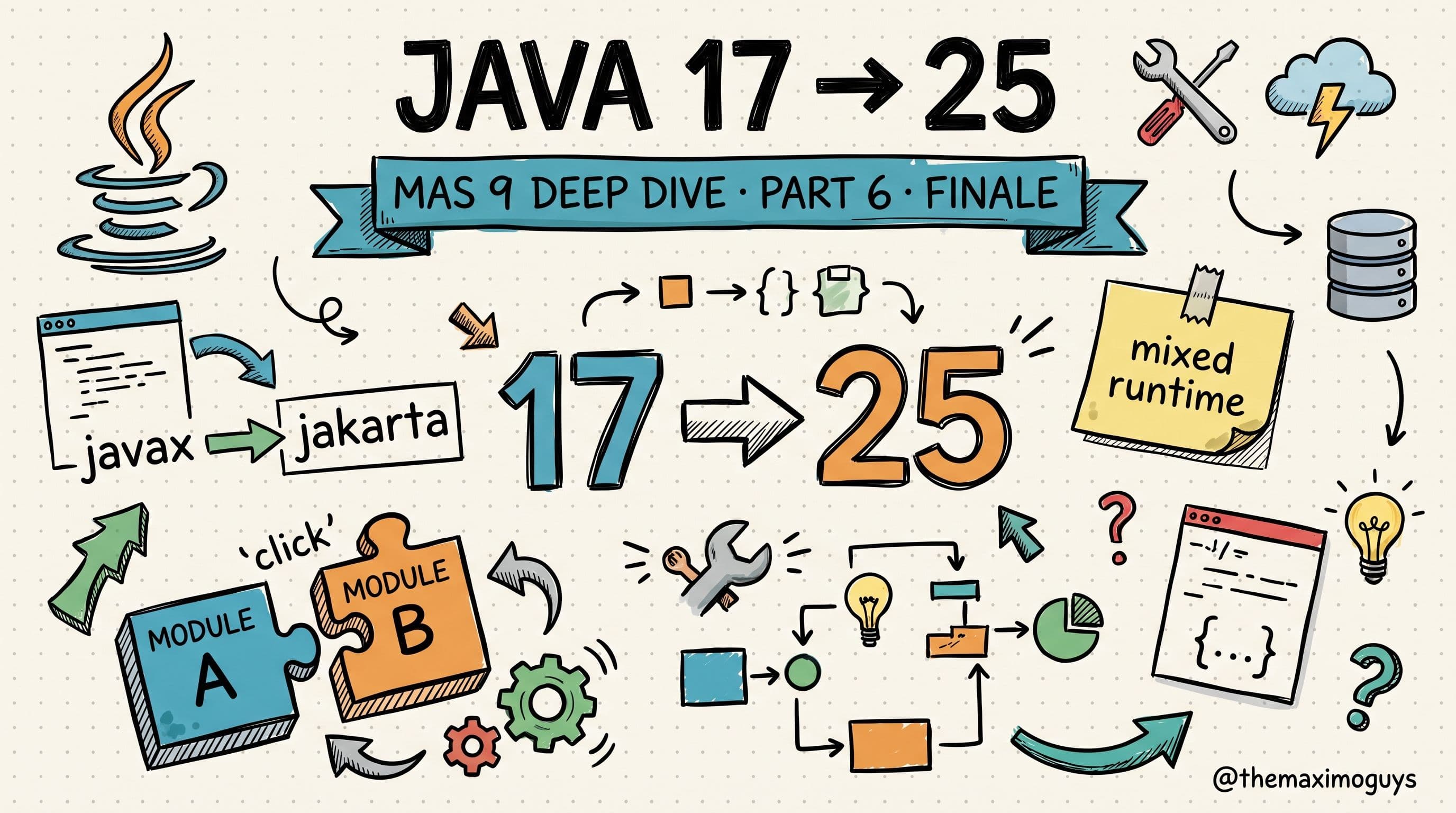

 Surendra Katta