

PR to PO & Approvals: From Approved Requisition to Issued Order in Two Minutes
🎯 Who this is for: Buyers and purchasing supervisors who own the cycle-time metric, plus the admins who build the approval workflows and the desktop-requisition intake that decides whether a requisition becomes a purchase order in two minutes or two days.
Series: Part 7 of 10 — MAS 9 Supply-Chain Playbook | Read time: 26 minutes
⏱️ Cycle Time Is the Buyer's Number
Ask a procurement manager for the single metric that matters and you will hear it fast: PO cycle time — the days from an approved requisition to an issued purchase order. It is on the buyer's Start Center KPI row for a reason (Part 6). Every hour a requisition sits unsourced is an hour the storeroom waits, the work order waits, and the asset stays down.
MAS 9 rationalized the conversion. Where 7.6 made you walk a requisition through a list, a selection, a separate PO application, a save, and an approval, MAS 9 compresses the common case into a single action from the requisition itself. This part is that conversion in all three of its shapes, the desktop-requisition intake that pushes creation upstream to the people who know what they need, and the thresholded approval workflow that routes by dollar value without approver-shopping.
<aside>
💡 Key insight: The core objects — PR, RFQ, PO, MATRECTRANS, INVOICE — are unchanged from 7.6. What MAS 9 changed is the number of clicks between them. Master the compressed Create Purchase Order action and multi-vendor split, and single-vendor cycle time drops to a couple of minutes without switching apps more than twice.
</aside>
🔁 The Compressed Conversion: Create Purchase Order
The heart of it is one action on an approved PR: Create Purchase Order. It carries over vendor, line items, quantities, GL, project, and task; you fill only what is genuinely PR-to-PO specific — buyer (defaults to you), FOB, ship-to if not defaulted. There are three paths, depending on how the PR was sourced.
The simple path — no RFQ, vendor already set
- Open the approved PR.
- Action menu → Create Purchase Order.
- Confirm the carried-over vendor and lines; add FOB and ship-to.
- Save — status WAPPR.
- Route for approval, or approve directly if within your authorization threshold.
- Status APPR → the PO prints/emails to the vendor via Comm Template and BIRT.
That is a two-minute transaction for a single-vendor PR. Note one MAS 9 subtlety: the old PRINTED sub-status is now automated via a flag on PO issue, not a separate manual "Print" click. If a buyer used to hit Print to change status, that step is gone.
Concretely: PR-9001 arrives in the buyer's "Ready to Source" portlet at 8 a.m. — three bearings for a preventive-maintenance job, $420, vendor ACME already on the line, under the $1,000 approval threshold. The buyer opens it, chooses Create Purchase Order, confirms the ship-to, and saves. The PO is under threshold, so the workflow auto-approves it; it emails to ACME via Comm Template with a BIRT PDF attached. Total elapsed time at the desk: under two minutes, two apps touched (PR and PO), and the storeroom now has a dated expectation for those bearings.
The RFQ path — competitive bid first
- From the approved PR, action menu → Create RFQ (the full RFQ mechanics are Part 8).
- After award, from the RFQ → action menu → Create PO from Award. The winning vendor, lines, and awarded prices flow to the PO.
- Approve, issue, done.
The contract path — price already negotiated
- On a PR whose contract reference is populated, action menu → Create Purchase Order.
- Prices pull from the contract; you cannot edit them without breaking the contract link.
- Approve, issue, done.
The contract path is the fastest of the three because the price question is already answered — which is exactly why contract coverage (Part 8) is such a cycle-time lever.
✂️ Multi-Vendor Split
One requisition often needs more than one vendor. MAS 9 handles this without manual PO juggling: set a different Vendor on different PR lines, then run Create Purchase Order, and it produces one PO per vendor automatically. If only three of five lines have a vendor assigned, those three become a PO and the other two stay on the PR for you to source. Unassigned lines are not lost — they wait on the requisition.
This is the clean replacement for the 7.6 habit of manually selecting lines across multiple POs. Assign vendors at the line level and let the conversion fan them out.
For example, a five-line PR for a pump overhaul might carry three lines a distributor stocks (bearings, seals, gasket set) and two lines only the OEM sells (a custom impeller, a shaft). Set the distributor on the first three lines and the OEM on the last two, run Create Purchase Order once, and MAS 9 produces two POs — one to each vendor — with the right lines on each. You approved one requisition and issued two orders without ever opening the PO application to build them by hand.
🖥️ Desktop Requisitions: Pushing Intake Upstream
The fastest way to reduce a buyer's clarification cycles is to stop having buyers create requisitions at all for routine buys. Desktop Requisitions (DESKREQ) is the self-service intake app for requestors — site managers, planners, engineers — to raise a PR without opening the full PR application.
What it gives requestors
| Feature | Why it matters |
|---|---|
| Personal Frequently-Ordered list | Repeat-buy items reorder in a few clicks |
| Templates | A saved "standard order" reused every time |
| Status tracking | The requestor watches approval and receipt without nagging the buyer |
| Auto-PO creation | Approved DRs for contract-priced items become the PR and the PO automatically |
The auto-PO win
The single biggest daily time saver here is auto-PO on DR for fully-contracted routine buys. On final approval, the DR creates the PR and the PO without a buyer step at all — MRO consumables replenish themselves through the requestor, not the desk.
What buyers configure (with admin)
- The commodity-to-buyer assignment table, so DRs auto-route to the right buyer (Part 8 covers commodity routing).
- The DR approval hierarchy — typically two-tier (requestor's supervisor plus finance at a threshold).
- Comm Templates so requestors are notified when their DR becomes a PR and a PO.
One caution: a Desktop Requisition is a separate object (DESKTOPREQ) from a PR. Buyers see the resulting PR, not the DR; to trace back, use the DRNUM field on the PR. And if an item is missing its commodity code, DR auto-routing fails and the PR lands in a "Default Buyer" queue — clean item commodity codes so that queue stays empty.
<aside>
💡 Key insight: Every requisition a requestor creates correctly through Desktop Requisitions is a requisition the buyer never has to clarify or re-key. Pushing intake upstream is not offloading work — it is putting requisition creation with the one person who actually knows what they need, and reserving the buyer's time for sourcing judgment.
</aside>
📄 When Copy Beats Create
Not every PO starts from a PR. For a recurring order to the same vendor for the same lines, Copy PO is faster than building a fresh requisition — but MAS 9 changed two behaviors worth knowing.
First, Copy PR-to-PR now skips lines with inactive items. That is clean behavior — you don't clone a line for a part that has been obsoleted — but buyers who depended on copying to reproduce an exact line set sometimes get fewer lines than expected and have to add the current-equivalent item by hand.
Second, Copy PO copies attachments by default (in 7.6 this was a toggle). So a cloned PO carries the original's quote and documents forward automatically. Convenient, until you re-issue and accidentally re-send last year's vendor quote — review the attachments before you approve a copied PO. Use Copy for genuine repeat orders; use Create Purchase Order from a fresh PR when the requirement is new.
🪜 The Thresholded Approval Workflow
Approval routing by dollar value stops "approver shopping" — emailing people until one says yes — and gives every stage an audit trail. MAS 9 ships stock PR and PO workflow processes you tune in Workflow Designer.
A starting threshold policy
| Amount | Approver |
|---|---|
| < $1,000 | Requestor's supervisor |
| $1,000–$10,000 | + Department head |
| $10,000–$50,000 | + Site director |
| $50,000–$250,000 | + Procurement manager |
| $250,000+ | + CFO |
| Any amount, capital project | + Project manager |
| Any amount, contract | Buyer only (the contract pre-approved the spend) |
How to build and tune it
- In Workflow Designer, open the
PRSTATUS(orPOSTATUS) workflow. - Add conditional routing nodes keyed on
totalcost— for exampletotalcost >= 10000routes to the department head. - Use Conditions for complex routing (commodity, site, GL pattern like
glaccount LIKE 'CAP%'). - Test in dev by submitting PRs at each threshold and verifying the inbox routing.
All of this is configuration — no Java. The contract row is the quiet efficiency: a contract PR needs only buyer approval because the contract already approved the spend, which is another reason contract coverage shortens cycle time.
🔀 The Status Flow
Both objects move through a familiar lifecycle. The PR:
DRAFT → WAPPR → APPR → CLOSE
              ↘        ↗
             CANCEL / REJECTED
The PO adds an in-progress state:
DRAFT → WAPPR → APPR → INPRG → CLOSE
                            ↘
                           CANCEL
INPRG means at least one receipt has happened but not all quantity is received yet — the PO is partially fulfilled. Understanding INPRG is what lets the "My POs With Partial Receipts" portlet from Part 6 make sense.
✏️ Change Orders and PO Revisions
Vendors call back. Lead time slips from four weeks to eight; a short-ship needs a quantity cut; a tax line has to be added. You do not edit an approved PO directly — you revise it.
PO APPR → Revise PO → PO_REV2 (DRAFT) → WAPPR → APPR
                              ↑
                   prior PO_REV1 kept as history
The revision creates a new version while preserving the prior one in the database for audit. This is the same principle you will meet on contracts in Part 8 — approved documents change through controlled revisions, not silent edits.
🤝 Delegation, Reassignment, and Escalation
Three mechanisms keep approvals from stalling:
- Delegation — set on Labor → Delegation tab; the workflow honors the delegate during the window, so PTO does not become a bottleneck.
- Reassignment — hand a single decision to another approver from the inbox; the reassigned approver must still be authorized for that amount, and the next workflow step is unchanged.
- Escalation — a timed rule (using the ESCALATION table) that routes an unactioned approval to a backup after, say, 48 hours.
Together these are how a well-run desk keeps median PR approval time under twenty-four hours and eliminates "lost in someone's inbox" complaints.
<aside>
⚠️ Watch out: Reassigning an approval does not re-route the workflow — it hands off only this decision. Buyers sometimes reassign expecting the whole chain to follow, then wonder why the next step went back to the original path. Reassignment is a one-step handoff, not a re-route.
</aside>
⚠️ The External-ERP Variant
If your Maximo feeds an external ERP (SAP, Oracle, Workday), the PR-to-PO conversion may not happen in Maximo at all. In those environments the approved PR flows out via integration, the ERP creates the PO, and the ERP returns a PO number that lands on the PR (externalponum) along with a status field the escalations key off. Maximo's job becomes producing a clean, approved PR and an audit-quality RFQ record; the PO issuance and much of the downstream flow live in the ERP.
Confirm which model you are in before go-live, because it changes what "issue a PO" even means on your desk. In an ERP-terminus environment a buyer who keeps hunting Maximo for a "Create PO" button will not find the flow they expect — the button's job moved to the ERP, and the Maximo-side signal is the returned PO number appearing on the requisition. The lifecycle finale (Part 10) maps both the Maximo-terminus and ERP-terminus variants explicitly.
🔧 Troubleshooting PR to PO
| Symptom | Cause | Fix |
|---|---|---|
| Create PO produced fewer lines than expected | Some lines had no vendor assigned | Assign vendors, or source remaining lines on the PR |
| Contract price won't edit on the PO | Contract link locks the price | Change price only by revising the contract |
| PR landed in "Default Buyer" queue | Item missing a commodity code | Clean item commodity codes (Part 8) |
| Approval stalled at first node | Approver on PTO, no delegate | Set delegation on the Labor record |
| Can't edit an approved PO | Approved POs change via revision only | Use Revise PO |
| PO shows INPRG but you expected CLOSE | Partial receipt — not all qty in | Receive the balance, then close |
🎓 The Commandments of PR to PO
- Thou shalt convert with Create Purchase Order — one action, not five clicks.
- Thou shalt assign vendors at the line level and let multi-vendor split fan out the POs.
- Thou shalt push intake upstream with Desktop Requisitions and auto-PO for contract buys.
- Thou shalt route approvals by threshold in Workflow Designer, never by email.
- Thou shalt revise, not edit, an approved PO.
- Thou shalt set delegation and escalation so approvals never stall.
Key Takeaways
- PO cycle time is the buyer's headline metric, and MAS 9's compressed Create Purchase Order action drops single-vendor conversion to about two minutes.
- There are three conversion paths — simple, RFQ, and contract — and the contract path is fastest because the price is already set.
- Multi-vendor split turns one PR into one PO per vendor automatically when vendors are assigned at the line level.
- Desktop Requisitions push intake upstream, and auto-PO for contract-priced buys removes the buyer step entirely for routine replenishment.
- Thresholded approval workflows route by dollar value — all configuration, no Java — and approved POs change through revisions, not edits.
References
- IBM Maximo Application Suite Documentation
- Maximo Manage — Purchase Requisitions and Purchase Orders (IBM Documentation)
- Maximo Manage — Desktop Requisitions (IBM Documentation)
- Maximo Manage — Workflow Designer (IBM Documentation)
Series Navigation
| Previous: | Part 6 — The Buyer's Start Center |
|---|---|
| Next: | Part 8 — Sourcing Discipline |
About TheMaximoGuys: We help Maximo developers and teams navigate the move to MAS 9 with practical, no-hype guidance grounded in how the platform actually behaves.
Published by TheMaximoGuys | July 2026

 Posam Lakshminarayana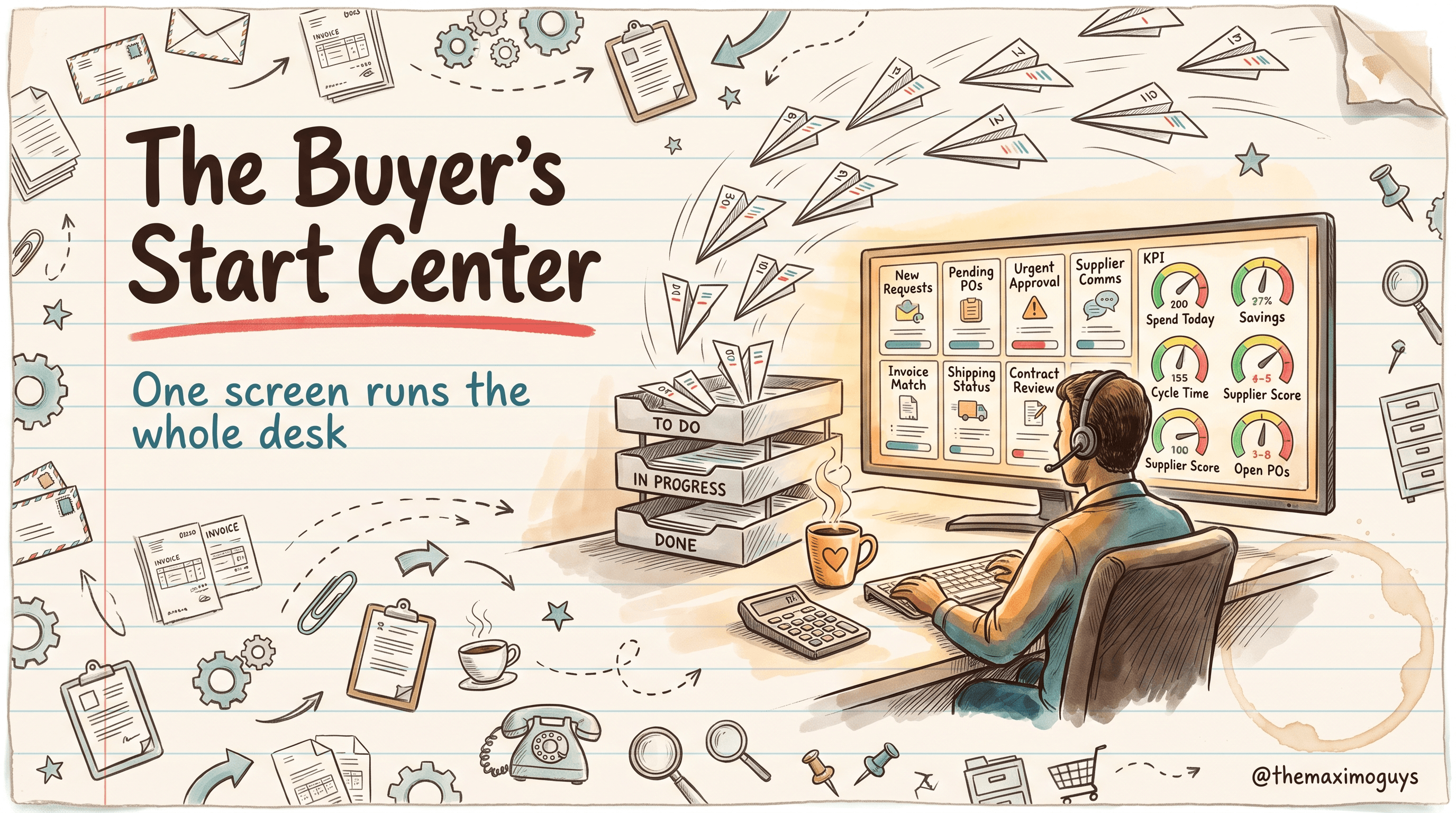
 Venkat Achanta