What's New Inside Maximo Manage 9.2: Tickets, Alerts, AI Insights, and a Calibration Engine That Finally Checks Itself
🎯 Who this is for: Maximo administrators, functional leads and reliability engineers who own a live Manage environment and need to know — feature by feature — what actually changes when 9.2 lands.
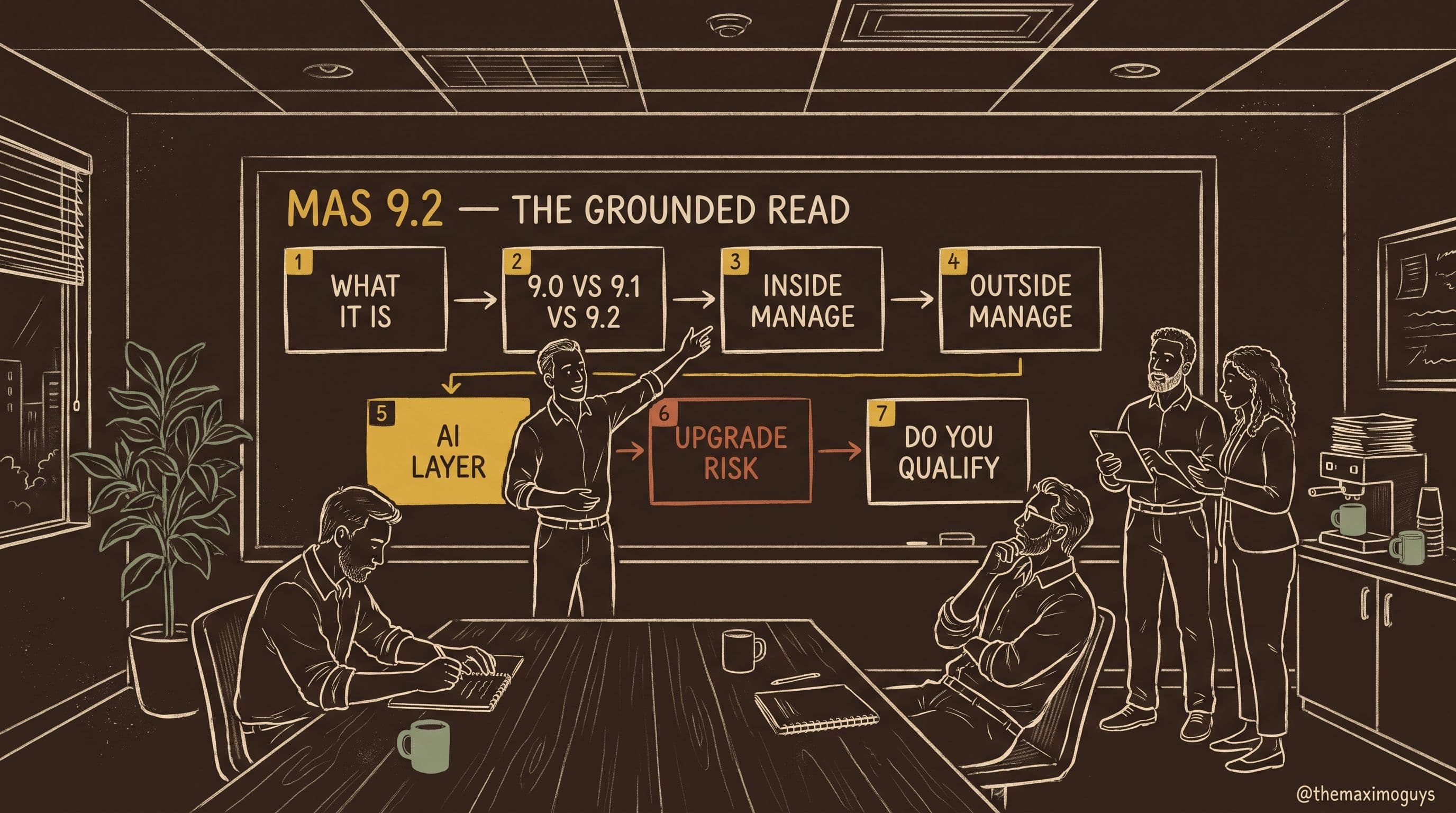
Series: Part 3 of 7 — MAS 9.2: What Actually Changed | Read time: 24 minutes
📖 The Release Where Manage Stopped Deferring
Most Manage releases give you a handful of field-level improvements, a version bump on some libraries, and a dashboard tweak. You read the what's-new page in four minutes and move on.
Manage 9.2 is not that release.
Two new applications ship. A product that used to be a suite-level add-on gets absorbed into Manage. Calibration — a corner of Maximo that has been essentially unchanged for years — gets an automated compliance engine pointed squarely at ISO/IEC 17025 and ISO 15189. The time zone logic behind PM generation, which has quietly caused reconciliation headaches in every multi-region estate ever built, gets six configurable processing rules. And underneath it all, the runtime jumps to Java 25.
There is also one genuine breaking change, one retroactive data caveat, and one deployment restriction that will stop some organisations dead. We will get to all three, clearly labelled.
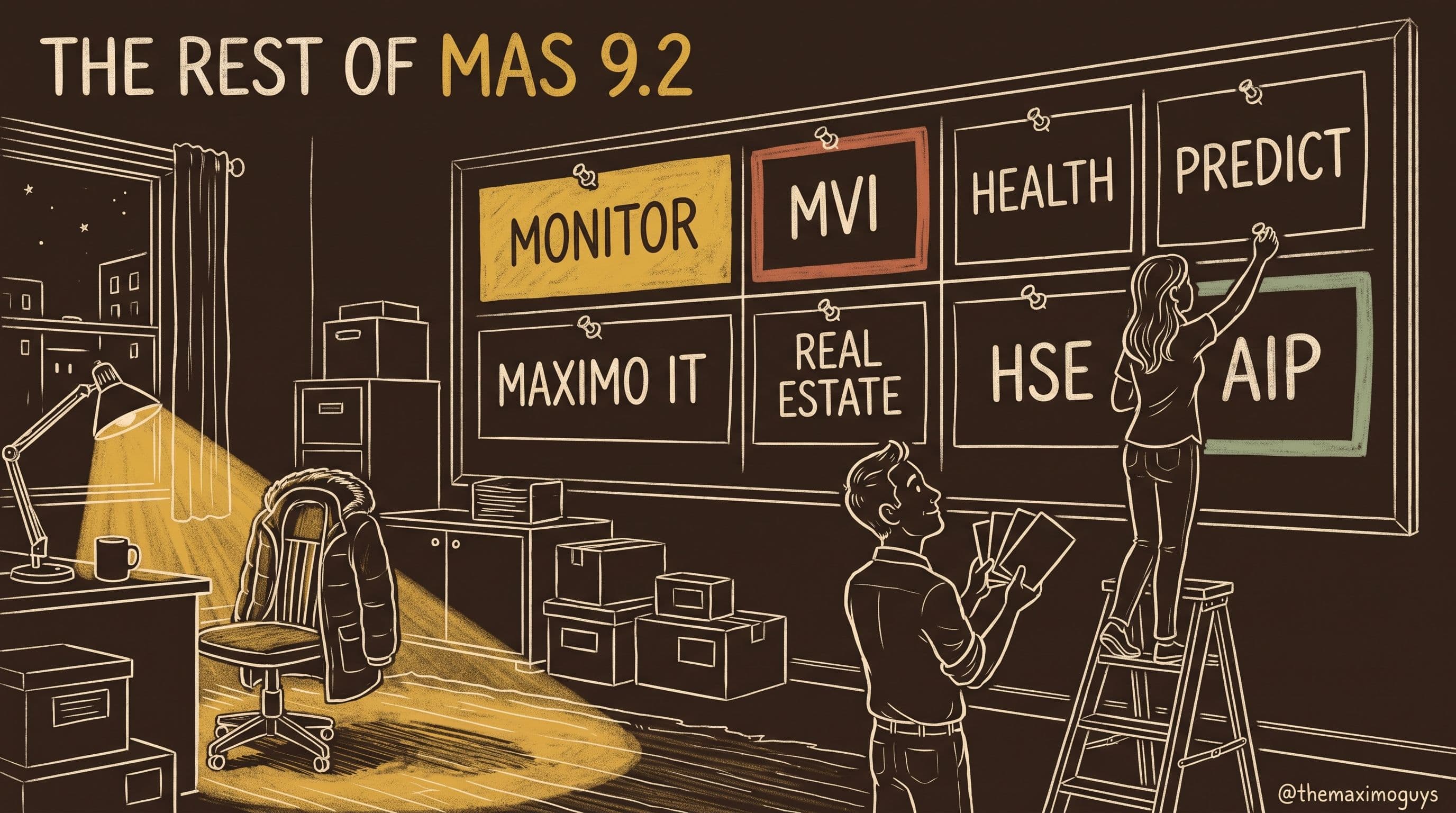
This post covers Maximo Manage and Maximo Optimizer only. Monitor, Health and Predict, Visual Inspection, Maximo IT, Real Estate and Facilities, HSE and Asset Investment Planning are the subject of Part 4. The platform-level changes — Db2 12, user synchronisation removal, permission modes, the new Users page — belong to Parts 1 and 6.
Everything below traces to IBM's own What's new in Maximo Manage 9.2 documentation, read directly rather than summarised second-hand.
📊 The Manage 9.2 Landscape at a Glance
Before the detail, here is the shape of the release. Scan this, then read the sections that hit your environment.
| Area | What lands in 9.2 | Who feels it first |
|---|---|---|
| New applications | Tickets, Alerts | Service desk, maintenance managers |
| AI | AI-generated alert insights with confidence scores | Reliability engineers |
| Collaborate | Becomes a Manage add-on; Expert Groups → Person Groups, Technicians → Labor | Remote-assist teams, admins |
| Work orders | Attachments, failure reporting, PM description inheritance, item-less material costs | Planners, technicians |
| Calibration | Automated accuracy validation for ISO/IEC 17025 and ISO 15189 | Regulated industries, metrology |
| PM scheduling | Six time zone processing rules | Multi-site, multi-org estates |
| Administration | Custom shell scripts in build, OAuth email, Arabic/Hebrew, JMS traceability | Platform admins, integrators |
| Dashboards | Assets & locations dashboard, KPI trend charts, work queue visualisation | Supervisors, executives |
| Technical | Java 25, BIRT 4.21, Oracle stored outlines removed | Infrastructure, DBAs |
| Optimizer | Dynamic pod scaling, capacity planning, LNS algorithm, natural-language what-if | Schedulers, dispatchers |
💡 Key insight: The centre of gravity in this release is the ticket-to-alert-to-work-order chain. Tickets, Alerts, AI alert insights, the Assets & locations dashboard, condition monitoring alerts and the EVENT meter are not six unrelated features — they are one pipeline, shipped in one release. Read them together.
🎫 Tickets: One List for Every Ticket Class
Here is the situation 9.2 is answering. Your service desk works across service requests, incidents, problems — and now alerts. Each has its own application, its own list view, its own saved queries. A coordinator triaging a morning's backlog opens three or four applications and mentally stitches the picture together. Nobody designed that; it accumulated.
The Tickets application collapses it. Per IBM's Manage 9.2 documentation, you use Tickets to manage all ticket records in one centralized location, and specifically to:
- View and manage all ticket types in a single list — one queue, not one queue per class.
- Create new service requests and alerts directly from the application.
- Filter and organise tickets by class using View Manager — so the consolidated list can be sliced back into class-specific views on demand.
- Perform bulk actions, including changing the owner or status of multiple tickets at once.
- Access ticket summaries and details across different ticket classes without switching applications.
- Search for similar tickets, to catch duplicates and recurring patterns before they become three separate investigations.
- Add communication and work log entries in place.
Why bulk actions matter more than they sound
Of that list, the two that change daily behaviour most are bulk owner/status changes and similar-ticket search.
Bulk actions are what turn a consolidated list from a reporting view into a working view. A supervisor who can multi-select fifteen tickets and reassign the lot to a covering owner group during someone's absence does in one action what previously took fifteen record opens. That is the difference between a list you look at and a list you work from.
Similar-ticket search is the quieter one. Duplicate tickets are expensive not because they take time to close but because they fragment the evidence — three half-documented reports of the same fault instead of one properly investigated record. Catching them at the list level, across classes, is where the saving is.
What Tickets does not change
The underlying ticket object model is not what changed here — this is a new surface over the records you already have. Your existing escalations, workflows, communication templates and reports continue to operate against the same records. What you are getting is a consolidated place to work them, plus the ability to raise service requests and alerts without leaving it.
💡 Key insight: Plan your View Manager configuration before you roll Tickets out. A single unfiltered list of every ticket class across every site is not a usable work surface for anyone. The value of Tickets is realised through class-based views tuned per role — service desk, maintenance planner, reliability engineer — not through the raw consolidated list.
🔔 Alerts: Asset Conditions Without Forcing a Work Order
The second new application is Alerts, and it fixes a structural gap rather than a usability one.
Before 9.2, if a condition on an asset or location deserved attention but did not yet justify work, your options were awkward. Raise a work order you did not intend to execute. Log a service request against an asset for a condition nobody reported. Or track it outside Maximo entirely — a spreadsheet, an email thread, an operator's notebook.
In 9.2 you get a proper record type. As IBM's documentation puts it, as a maintenance manager you can now use the Alerts application to view and manage alerts, and create alerts for asset and location conditions that require attention without generating a work order. The application sits under the Service Desk module, and you manage the alert lifecycle from start to finish.
That last phrase matters. An alert is not a notification that fires and disappears — it is a record with a lifecycle you own, close, and can report on.
Where alerts come from
Alerts do not only arrive by hand. Manage 9.2 wires several sources into the same object:
| Alert source | Mechanism | Configured in |
|---|---|---|
| Manual | Raised directly by a user | Alerts or Tickets application |
| Condition monitoring | Measurement point breaches threshold | Condition Monitoring measurement points |
| External event streams | EVENT meter fed through the Maximo Integration Framework | Assets and Locations, via EVENT meter |
| Monitor (suite) | Alerts sent to Manage for review | Maximo Monitor — see Part 4 |
Two of those deserve unpacking, because both are new in 9.2.
Flexible alert and work order generation at measurement points. Condition Monitoring measurement points can now be configured to generate alerts only, work orders only, or both, depending on operational requirements. Critically, IBM notes that the mandatory fields on a measurement point now depend on the type of operation you want to perform — so if you only want alert notifications, you no longer have to populate the fields that only exist to support work order creation. That is a real reduction in configuration overhead for monitoring-heavy estates.
External alert integration with the EVENT meter. The new EVENT meter lets Manage capture and monitor incoming event data from external systems. You associate an EVENT meter with assets and locations, enable condition monitoring for external event streams, and generate alerts from events arriving through the Maximo Integration Framework. IBM documents two controls that stop this becoming an alert firehose: the system performs duplicate detection by comparing incoming Event and Event Long Description values against the most recent measurement, and alert suspension is supported to control alert volume when the same event recurs.
Turning alerts off, deliberately
The counterpart feature lives in the Asset and Location applications. A new Inhibit Alert Generation action lets you stop alert creation for specific assets and locations during start-up, shutdown or maintenance — exactly the transitional states that generate the most meaningless alerts. You can propagate the inhibition to child or ancestor assets and locations in the hierarchy.
If you have ever watched a planned shutdown generate four hundred alerts that everyone then ignores, you already understand why this shipped alongside the Alerts application rather than after it.
🤖 AI-Generated Insights for Alerts
An alert tells you that something happened. The new AI-generated insights are IBM's answer to why, and what now.
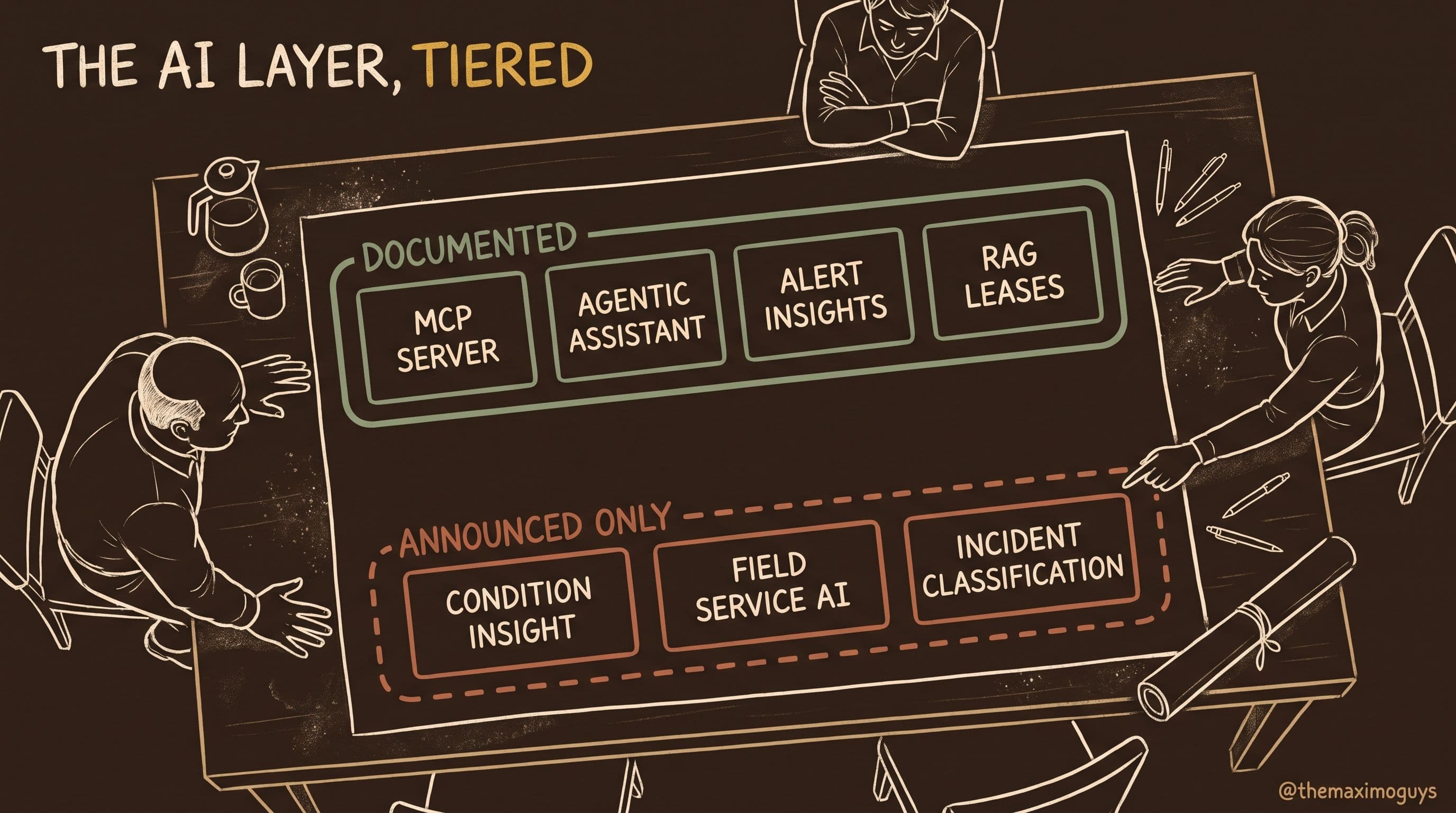
Per the Manage 9.2 documentation, alert insights help you understand why an alert occurred on an asset and what actions to take next. The AI engine analyses multiple data sources — alert content, asset details, work history and meter data — and returns:
- Contextual information about the alert
- Trend analysis across the available history
- Recommended actions
And then the part that separates this from a black box: each insight includes a confidence score of high, medium or low, indicating how strongly the system supports its own analysis.
You view insights in the Tickets application, and you can create pre-filled work orders based on the recommendations.
How to actually treat the confidence score
A three-level confidence score is only useful if your organisation decides in advance what each level means operationally. Left undefined, "medium" becomes whatever the individual reviewer feels like that morning. A workable starting policy:
| Confidence | Reasonable default handling |
|---|---|
| High | Accept the recommendation; create the pre-filled work order and review before approval |
| Medium | Treat as a prompt for human diagnosis, not an answer; do not auto-create work |
| Low | Log it, look for the data gap that produced it, do not act on the recommendation alone |
That table is a starting point, not IBM guidance — but adopting some explicit policy is the difference between an AI feature that earns trust and one your reliability engineers quietly stop reading.
The data quality dependency
Note carefully what the engine consumes: alert content, asset details, work history, meter data. Three of those four are only as good as your historical record-keeping. An asset with a thin work history and no meters will produce thinner insights than one with ten years of properly coded failure data. If your insights come back consistently low-confidence on a class of assets, the finding is usually about your data, not about the model.
💡 Key insight: The pre-filled work order path is the feature to govern hardest. An AI recommendation that creates a work order is a recommendation that consumes budget and labour. Decide before go-live who is permitted to action a pre-filled work order and at what confidence level, and put that in your security groups — not just in your training deck.
🤝 Collaborate Lands Inside Manage
This is the structural change in the release, and it has a hard restriction attached.
Maximo Collaborate is now an add-on in Maximo Manage. It is no longer a suite-level add-on. If you have been tracking the lineage: Maximo Assist was renamed Maximo Collaborate at MAS 9.1, and at 9.2 it stops being a suite add-on and becomes a Manage add-on. Three releases, three positions.
The migration is not just a re-badge. Applications move and merge:
| Collaborate before 9.2 | Where it lives in Manage 9.2 |
|---|---|
| Expert Groups application | Person Groups application |
| Technicians application | Labor application |
| ICE server configuration (Collaborate app settings) | Mobile Configuration application |
| Collaborate Sessions application | Collab Session application, under Work Orders |
Read that table as an administrative to-do list rather than a curiosity. Every one of those rows is a place where your existing configuration, security group assignments and user training reference an application that no longer exists under its old name.
Expert Groups → Person Groups, Technicians → Labor
These two merges are the sensible ones. Collaborate maintained its own parallel registries of experts and technicians alongside Manage's Person Groups and Labor. Two systems of record for "who is a qualified technician" is a data integrity problem waiting to happen. Folding them together means a technician exists once, in Labor, and an expert group is a Person Group like any other — which also means Collaborate participation now inherits the security and site scoping you already apply to those objects.
Collab Session, with PDF summaries
The Collaborate Sessions application becomes the Collab Session application under Work Orders. You can search, filter and view collaboration sessions — including associated work orders, assets and participants — and download session summary PDFs once a session is completed.
The PDF matters more than it looks. A remote-assist session where a senior engineer talked a field technician through a repair has historically left almost no durable trace in the asset record. A downloadable session summary attached to the work history turns an ephemeral video call into evidence: what was diagnosed, who was involved, what was decided. For regulated and audited environments, that is the difference between remote assist being a productivity tool and being an auditable part of the maintenance record.
⚠️ Deployment restriction: IBM documents this explicitly — Maximo Collaborate cannot be installed on Single Node Red Hat OpenShift (SNO) environments. If your target cluster is SNO, Collaborate is unavailable there, full stop. SNO is common for edge sites, remote facilities, constrained-footprint deployments and proof-of-concept clusters, so check your topology before you scope a Collaborate rollout — this is not something a licence or a configuration flag resolves.
🛠️ Work Order Changes You Will Feel on Day One
The work order enhancements in 9.2 are individually small and collectively significant, because they close gaps that generated daily workarounds.
1. PM-generated work orders inherit the job plan description. When a work order is generated from a PM, the work order description is now inherited from the associated job plan. If you have ever scrolled a list of generated work orders that all read like the PM record rather than the actual task, this is the fix. It also quietly improves everything downstream that reads the description — mobile work lists, dispatch views, reporting.
2. Attachments in the Work Orders application. You can now add attachments to work orders in the Work Orders application. Note the application name — this is the Work Orders application, not only Work Order Tracking.
3. Failure reporting in the Work Orders application. Failure reporting is now supported in the Work Orders application. Failure coding that only exists in the classic application is failure coding that field-facing users skip.
4. Failure reporting data on calibration work orders. This is the substantive one. On a calibration work order you can now enter date and time of failure, reported by, description, impact, root cause, actions, and compliance reference documentation, among other details. That final field is the giveaway about who this was built for — a calibration failure in a regulated environment is not just a maintenance event, it is a compliance event that needs a documented reference.
5. Actual material costs without a specified item. In Work Order Tracking, on the Actuals tab, you can add materials with a Material line type without being required to specify an item. Anyone who has tried to record the cost of a one-off purchase, a consumable that was never catalogued, or a supplier-provided part with no item master record knows the workaround: create a junk item, or park the cost somewhere it does not belong. Both distort your item master or your cost reporting. This removes the need for either.
| Enhancement | Application | What it replaces |
|---|---|---|
| Job plan description inheritance | PM-generated work orders | Manually retyping descriptions |
| Attachments | Work Orders | Attaching only in Work Order Tracking |
| Failure reporting | Work Orders | Failure coding in the classic app only |
| Calibration failure reporting | Calibration work orders | Off-system compliance records |
| Item-less material cost | Work Order Tracking → Actuals | Dummy item master records |
📏 Calibration Gets Serious: ISO/IEC 17025 and ISO 15189
If you work in pharmaceuticals, clinical laboratories, aerospace, nuclear, food and beverage, or any other environment where an accredited calibration programme is a licence-to-operate condition, this section is the most consequential part of the release for you.
The problem it solves
Calibration has always depended on one rule that Maximo did not enforce: your standard must be more accurate than the asset you are calibrating. The conventional expectation is a meaningful accuracy ratio between the standard and the unit under test — and until 9.2, nothing in Maximo checked it. A technician selected a rotating asset as a calibration standard, and Maximo accepted it. Whether that standard was adequate for the job was a matter of the technician knowing, the procedure documenting it, and the auditor spot-checking it afterwards.
That is a control gap you can survive for years and then fail an audit on in a single afternoon.
What 9.2 does
Per IBM's documentation, Maximo Manage now automatically validates that calibration standards have adequate accuracy specifications when you select a rotating asset as a calibration standard on a work order. IBM states the compliance intent explicitly: the feature ensures compliance with regulatory standards ISO/IEC 17025 and ISO 15189 by comparing the accuracy specifications of the standard against the asset under calibration.
Three implementation details make it usable rather than merely present:
- Unit conversion is included when necessary. The standard and the asset do not have to be specified in the same units for the comparison to work. This is the detail that separates a feature that works in the field from one that works only in the demo — real instrument specifications are recorded in whatever unit the manufacturer chose.
- Configurable warning or enforcement modes. You choose whether an inadequate standard produces a warning the technician can proceed past, or a hard block. That choice is a policy decision, not a technical one.
- A documented bypass. You can bypass the accuracy check for specific assets by selecting the Bypass Accuracy Validation checkbox on either the asset being calibrated or the rotating asset standard. Manage then skips the check and lets you continue. IBM names the intended cases: older equipment, emergency situations, or non-standard equipment.
How to configure it — warning or enforcement?
The temptation in a regulated environment is to go straight to enforcement. Resist that for the first cycle.
| Mode | Behaviour | When to use it |
|---|---|---|
| Warning | Technician is alerted, can proceed | Initial rollout, while you clean accuracy specification data |
| Enforcement | Inadequate standard blocks the work order | Steady state, once specifications are trustworthy |
| Bypass (per asset) | Validation skipped for that asset or standard | Older, emergency or non-standard equipment, per IBM |
The reason to start in warning mode is data, not caution. The validation is only as good as the accuracy specifications recorded against your standards and your calibrated assets. If those specifications are incomplete or wrong — and in most estates that have never had an automated check, some of them are — enforcement mode on day one will block legitimate work while your metrology team scrambles. Run in warning mode, harvest the warnings as a data quality worklist, fix the specifications, then switch to enforcement.
Governing the bypass
A bypass checkbox in a regulated process needs a control around it, because it is precisely the field an auditor will ask about. Three practical measures:
- Restrict who can set it. Bypass is a metrology decision, not a technician convenience.
- Require a documented reason. IBM names three legitimate categories — older equipment, emergency situations, non-standard equipment. Record which applies.
- Review it periodically. A bypass set for an emergency in March and still set in November is not an emergency, it is an unmanaged exception.
Tool transactions on completed and closed calibration work orders
The companion change: you can now configure an organization to allow removal of tool transactions from calibration work orders — by work type, for example CAL or another synonym domain value — after they have been completed or closed.
Read the guard rails in that sentence. It is configured at organization level, scoped by work type, and applies to completed or closed records. This is deliberately not a general permission to edit closed work orders. It exists because calibration work orders accumulate tool transactions that sometimes need correcting after the fact, and the previous alternative — leaving a wrong transaction on a closed compliance record — was worse than a controlled correction.
💡 Key insight: Automated accuracy validation is the first time Maximo has enforced a metrological rule rather than a process rule. If you hold ISO/IEC 17025 or ISO 15189 accreditation, this feature converts a manual, auditor-facing control into a system control — but only if your accuracy specification data is complete. Budget the data cleanup as part of the upgrade, not after it.
🌍 Time Zone Processing Rules: Six Ways to Answer One Question
Here is a question that sounds trivial and is not: when a PM generates a work order, whose clock decides?
For a single-site organisation, nobody ever asks. For an estate with sites across three time zones under two organizations — with assets that were commissioned in one region and moved to another — this question has produced years of quiet reconciliation work. Work orders generated a day early or a day late at month boundaries. Compliance windows that looked missed in one report and met in another. PM frequency calculations that drifted because the base date was interpreted against a different offset than the generation run.
Manage 9.2 stops leaving this to inference. IBM documents that the framework which determines the appropriate time zone for date and time-related operations — scheduling PMs and generating work orders — is enhanced with new considerations, and adds six processing rules:
| # | Time zone processing rule | How the time zone is determined |
|---|---|---|
| 1 | PM | Based solely on the PM |
| 2 | Organization | Based on the Organization |
| 3 | Site | Based on the Site |
| 4 | Site, Organization | Site time zone first, then Organization |
| 5 | PM, Asset, Locations, Site, Organization | PM first, then Asset, then Location, then Site, then Organization |
| 6 | PM, Site, Organization | PM first, then Site, then Organization |
Choosing a rule
The six rules are really three shapes: a single authority (rules 1–3), a short fallback chain (rules 4 and 6), and a full asset-aware chain (rule 5).
- Single authority suits organisations where one level genuinely owns scheduling. If every PM is authored centrally against a defined schedule, the PM rule is honest and predictable.
- Short fallback chains suit the common multi-site case: use the site's clock, fall back to the organization when the site has not defined one.
- The full chain (rule 5) is for estates where the asset's location is the operationally meaningful clock — mobile equipment, distributed linear assets, plant that moves between sites. It is the most faithful to physical reality and the most work to keep correct, because it depends on Asset and Location time zone data being populated and maintained.
Whichever you pick, pick it deliberately and document it. The failure mode with configurable time zone resolution is not choosing the wrong rule; it is different people assuming different rules are in force and reconciling reports that never agree.
The related fix: end-of-month due dates
Alongside the time zone rules, the Set Due Date to End of Month field is now configurable at site level for PM due-date calculation. Previously a single behaviour applied more broadly; now a site whose compliance calendar genuinely runs to calendar month end can be configured independently of one that does not. Combined with the time zone rules, month-boundary PM generation — historically the single most reliable source of "why did this work order appear on the wrong day" tickets — becomes something you can actually reason about.
⚙️ Administration and Platform Plumbing
Six administration changes, none glamorous, several genuinely useful.
Custom shell scripts in customization archives. You can now include shell scripts in customization archives to perform advanced customizations during the Maximo Manage build process. This opens the build pipeline to steps that previously required either an unsupported intervention or a post-deployment manual task. Treat it with the seriousness of any code that runs in a build: version it, review it, and know exactly what it does, because a shell script executing during build has a wide blast radius.
OAuth for sending email. You can configure OAuth to send emails from Manage, with the constraint that you may only send from email addresses authorised by the OAuth provider. That constraint is the whole point. Basic-auth SMTP relays with a stored password are increasingly refused outright by corporate mail platforms, and a Maximo environment that cannot send email cannot run escalations, workflow notifications or communication templates. Take note of the authorised-sender restriction during planning: any communication template using a from-address that the provider does not authorise will stop working.
Arabic and Hebrew language support. Support for Arabic and Hebrew is available for applications built on the Maximo Application Framework. Both are right-to-left languages, which is a materially larger piece of engineering than adding another left-to-right locale. For organisations in the Gulf and Israel this removes a long-standing adoption barrier on MAF-based applications.
JMS logging with MEAMSGID. JMS debug logs now include `MEAMSGID` when messages are received from queues, making individual messages easier to trace in the Message Tracking application. If you have ever tried to correlate a failed inbound transaction against a queue log by timestamp and payload fragment, you know exactly how much time this returns.
System information shows operator version with release date. System information (Help > System information) now displays the operator version number with its release date, plus the latest components information for that operator version. IBM's stated purpose is version traceability and identifying the relevant APAR for your operator version image in the release notes. In practical terms: when you open a support case, the version string you need is now in one place and unambiguous.
Maximo Mobile onboarding assistance. Two additions for administrators: an onboarding checklist for configuring Maximo Mobile settings, reachable via Help > Show me how > Onboarding checklist, and an interactive Maximo Mobile onboarding guide available online or as a downloadable PDF.
| Administration change | Primary benefit | Watch out for |
|---|---|---|
| Shell scripts in customization archives | Build-time customization | Wide blast radius — govern like code |
| OAuth email | Meets modern mail security policy | Only OAuth-authorised senders work |
| Arabic and Hebrew | RTL support on MAF apps | MAF-based applications specifically |
| MEAMSGID in JMS logs | Message traceability | Debug-level logging required |
| Operator version + release date | Faster APAR identification | — |
📊 Dashboards: Assets & Locations, and the Operational Refresh
Manage 9.2 puts real work into two dashboard surfaces.
The Assets & locations dashboard
IBM positions this as a single unified view to monitor and analyse asset data across the organization, bringing together health, reliability and lifecycle information. Five documented capability areas:
- Analyse asset insights and performance data — asset condition, performance trends, failures and costs across assets and locations, to identify issues, uncover patterns and prioritise maintenance and operational actions.
- Take action on asset or location conditions and issues — review alerts, analyse failures, evaluate maintenance effectiveness and plan replacements directly from the dashboard.
- Leverage AI-driven insights — detect patterns, highlight anomalies and identify potential risks.
- Customize views and configurations — configure which cards display, and customize tabs to organise information around your workflow.
- Interact with asset data through filters — filter, refine and drill down, with contextual actions to explore details and navigate to related records without leaving the dashboard.
The design intent is clear from point 2: this is not a reporting dashboard you look at and then go elsewhere to act. Alerts, failure analysis and replacement planning are all reachable from it. Combined with the Alerts application and AI alert insights, it is the executive-and-supervisor-facing end of the same pipeline.
Operational dashboard enhancements
The operational dashboard picks up a set of practical additions:
- KPI trend chart customization — select a specific KPI time range and compare it against up to nine other KPIs in one graph, choosing from line, area, grouped bar, stacked bar and scatter chart types.
- Bulletin Board tile — safety alerts, operational communications and announcements surfaced on the dashboard.
- Map tile — asset location data on a map, with definable map layers.
- My work orders tile — everything assigned to you.
- Work queue chart visualisation — select work queues and view their details graphically.
- Actions on work queues — configure the work queue tile so you can act on work queue records, not just view them.
- More intuitive action names — dashboard and work queue action names updated for consistency.
The nine-KPI comparison is the standout. Most KPI dashboards force one metric per chart, which makes correlation a human memory exercise. Ten series on one graph with a shared time range is how you actually spot that backlog growth tracks a specific craft's availability.
Compliance monitoring from the Planning dashboard
From the Planning dashboard you can now calculate cost and monitor compliance for schedules directly. Two capabilities:
- Cost calculations that compute work, preventive maintenance and labour costs together.
- Compliance monitoring that tracks new, removed or delayed work orders during a defined period.
You can also set up scheduled tasks to automate the calculations, which is what turns this from a manual analysis into a standing measure. Schedule compliance measured by hand is measured occasionally; schedule compliance measured on a scheduled task is measured every period, which is the only version that changes behaviour.
🧱 Everything Else That Moved
The remaining enhancements are module-specific. Individually they are small; if one of them lands in your daily workflow, it is the reason you upgrade.
| Module | Enhancement |
|---|---|
| Assets | New Prevent Asset Population from Location field — stops the Asset field auto-populating from Location, forcing manual selection even when the location has only one associated asset |
| Assets | Inhibit Alert Generation action, with propagation to child or ancestor assets and locations |
| Asset Templates | Classification updates made on the Specifications tab in Classifications now appear automatically in associated asset templates |
| Crews | Automatic crew inactivation when an assigned labor record is set inactive — prevents active crews containing inactive labor |
| Crews | Supervisor field added when creating a crew |
| Meters | New Related Meters section on the Meters tab in Assets and Locations — associate one meter with another for combined analysis, for example correlating a gauge meter with a characteristic meter |
| Condition Monitoring | Measurement points configurable for alerts only, work orders only, or both; mandatory fields now depend on the operation type |
| Condition Monitoring | EVENT meter for external event streams via the Maximo Integration Framework, with duplicate detection and alert suspension |
| Inventory | New ABC selection type in Count Books |
| Inventory | Change the name of a staged bin via the Change bin for staged items action in Inventory Usage |
| Inventory | mxe.app.invuse.preventAutoSplitRotating system property controls how Auto-Split allocates rotating assets |
| Inventory | Storeroom field auto-populates when assigning a rotating asset to a work order |
| Inventory | Rotating asset numbers now available in the View Inventory Transactions window in Inventory and Stocked Tools, on both Receipts & Transfers and Issues & Returns tabs |
| Inspections | Link inspection forms to purchase order lines — specify that certain PO lines require inspection form completion before items are accepted into inventory |
| Labor | Rotational shift labor — define a shift pattern across multiple weeks (for example week 1 / week 2), apply it to selected labor, and override existing work shifts and non-working time |
| Purchasing | Search purchase orders by the purchase requisition that created them — Purchase Requisition added to More Search Fields |
The two worth pausing on
Inspection forms on purchase order lines is a genuine process control. Receiving inspection has historically depended on a separate procedure running in parallel with the receipt transaction, which means it depends on someone remembering. Binding the inspection form to the PO line means the requirement travels with the order: during receiving, users must complete the associated inspection form. Quality control moves from procedural to systemic.
Rotational shift labor closes a long-standing modelling gap. Maximo's shift model handled repeating weekly patterns well and multi-week rotations badly — which is a problem, because multi-week rotations are how a great deal of industrial shift work is actually organised. Defining a week 1 / week 2 pattern and applying it across a date range, with the ability to override existing work shifts and non-working time, means the labour availability your scheduler optimises against finally matches the roster your workforce actually works.
⚠️ Retroactive caveat: On the asset template classification sync, IBM is explicit — only classification updates made after the 9.2 upgrade are automatically applied. Any classification updates made prior to 9.2 must be manually updated in the asset template. Do not assume the upgrade back-fills your existing classification changes; it does not.
⚠️ Technical Updates and the One Breaking Change
Three technical items, and they are not equally risky.
Java 25
Maximo Manage and Maximo Optimizer now support Java 25, per IBM's support announcement IBM Maximo Manage: Transition to Java 25 from Maximo Application Suite 9.2. For context, Manage 9.1 moved to Java 17, so this is the second runtime jump in two releases.
Java version changes are a known source of surprise in Maximo estates, and the reason is almost always custom code. Automation scripts written in Jython, custom Java classes, third-party JARs bundled into customizations, and integration libraries all sit on that runtime. Nothing here is exotic — but "we assumed our automation scripts were runtime-agnostic" is how a smooth upgrade becomes a long weekend. Inventory your custom code and test it against Java 25 in a non-production environment before you commit to a production window.
BIRT 4.21
Manage now supports BIRT 4.21. Report engine upgrades tend to be uneventful for stock reports and eventful for heavily customised ones. If you maintain a substantial custom BIRT report library — particularly reports built years ago against an older engine — regression-test the customised ones. Stock reports come with the release; your custom reports come with you.
Breaking: Oracle stored outlines at session startup
This is the release's clear breaking change, and it is narrow but absolute.
Previously, Manage supported issuing alter session set use_stored_outlines = true for connections to Oracle databases. Manage 9.2 removes that support. IBM's guidance is direct: if your environment relies on Maximo Application Suite to enable stored outlines for the database session, you must now configure Oracle to enable stored outlines for database sessions outside of Maximo Application Suite — at the database level, using system or session settings or other DBA-managed mechanisms appropriate for your environment. IBM notes the change aligns with the deprecated status of Oracle stored outlines generally.
| Item | Type | Action required before upgrade |
|---|---|---|
| Java 25 | Runtime change | Test automation scripts, custom Java, third-party JARs |
| BIRT 4.21 | Library upgrade | Regression-test customised reports |
| Oracle stored outlines | Breaking removal | DBA must configure stored outlines at database level |
| Classification sync | Retroactive caveat | Manually update asset templates for pre-9.2 classification changes |
The Oracle item is the one to route to a specific named person. It is not a Maximo administrator task — it is a DBA task, it must be done outside Maximo, and if it is missed, the symptom is a performance regression rather than an error message. Performance regressions with no error are the hardest class of upgrade problem to diagnose, because nothing tells you where to look.
💡 Key insight: Of the four rows above, only one throws an obvious failure. Java and BIRT problems surface as errors during testing. The Oracle stored outlines removal and the classification caveat both fail silently — degraded query plans, and asset templates that quietly do not match their classifications. Put both on your post-upgrade verification checklist explicitly, because neither will announce itself.
🚀 Maximo Optimizer 9.2
Optimizer ships inside the Manage what's-new, and 9.2 is a substantial release for it — split between infrastructure changes that make it scale and algorithmic changes that make it smarter.
Infrastructure: making Optimizer behave in a cluster
Dynamic scaling for execution service pods. Administrators can configure dynamic scaling of execution service pods to optimise resource usage in Red Hat OpenShift. The system automatically adjusts the number of pod replicas between a defined minimum and maximum, based on CPU utilisation or job queue length. IBM states the intent plainly: conserve CPU and RAM when no optimization jobs are queued, while ensuring sufficient capacity during peak demand.
Anyone who has sized an Optimizer deployment knows the dilemma this resolves. Optimization workloads are bursty — a scheduling run at the start of a shift, then hours of nothing. Static sizing means you either pay for peak capacity around the clock or watch your scheduler queue during the morning run. Scaling on queue length rather than CPU alone is the right signal, because a queued optimization job is a waiting scheduler regardless of what the CPU graph says.
Queue worker distribution management. As a system administrator you can manage how optimization jobs are distributed across execution service pods. Optimizer distributes jobs evenly, assigning new jobs to the pod with the fewest active jobs. When all pods reach their maximum queue worker limit, new jobs wait in a pool until capacity becomes available.
Pair those two features and you get a system that queues gracefully and scales out under sustained load, rather than either thrashing or silently dropping work.
Java 25. Optimizer supports Java 25 alongside Manage.
FISMA alignment. Maximo Optimizer is aligned with FISMA high-level compliance standards — relevant if you operate in or sell into US federal environments.
Algorithms: making Optimizer smarter
Large Neighborhood Search (LNS) for large-scale optimization. The LNS algorithm handles large-scale dispatching problems with thousands of work orders, across multiple days and regions. IBM lists three specific capabilities: global optimization, multi-day dispatching including overnight tasks, and improved performance on large problem sets.
The significance is the class of problem it admits. Optimization approaches that work beautifully on a few hundred work orders degrade badly at thousands, which is why large field-service organisations have historically partitioned their scheduling problem by region or day and accepted locally-optimal, globally-mediocre results. Global optimization across multiple days and regions is a different proposition — and overnight task support specifically addresses work that crosses the day boundary, which partitioned approaches handle worst.
Capacity planning optimization to meet project deadlines. Planners and schedulers can determine where to increase craft capacity in order to meet project deadlines or maximise turnaround savings within a limited budget. The optimization identifies the minimum capacity increases needed by craft, by shift and by day. You configure scenarios with project end dates or budget constraints for extra work hours, and get recommendations through alerts and Gantt chart visualisations.
This inverts the usual question. Standard scheduling asks given this capacity, what can we complete? Capacity planning optimization asks given this deadline, what is the minimum capacity we must add, and where exactly? For turnarounds and shutdowns — where overtime and contract labour decisions are made weeks in advance against imperfect estimates — an answer broken down by craft, shift and day is directly actionable in a way that a headline number is not.
Natural-language what-if analysis. You can describe changes for what-if analysis in plain language instead of manually setting parameters and updating data. IBM's examples: add capacity to a resource, change work order priorities, remove precedence between tasks, adjust constraints. The optimizer interprets the request, applies the changes, and shows the results.
The real barrier to what-if analysis has never been the optimizer's ability to run scenarios — it has been the cost of setting each one up. When a scenario takes twenty minutes of parameter configuration, planners run one or two. When it takes a sentence, they run ten, and the tenth is often the one that finds the answer.
Diagnostics: understanding why the optimizer did what it did
Two of 9.2's Optimizer changes are pure explainability, and they address a specific and well-earned frustration.
Conflict diagrams. You can access and download conflict diagrams that explain conflicts between business rules in an optimization job. When an optimization run violates business rules, the system identifies conflicts and inconsistencies between constraints, and the conflict diagram provides a graphical representation to help you find the root cause.
Explaining why a work order was not assigned. IBM is unusually candid about the prior state here. In previous Optimizer versions, when work orders could not be scheduled, the reason given was that the work "cannot be assigned by optimizer with all selected optimization constraints" — which, as the documentation acknowledges, was not helpful and did not tell you why. Starting in Manage 9.2, better error messaging indicates exactly why work could not be scheduled, implemented across both the Graphical Assignment and Graphical Scheduling models:
- In Graphical Assignment, a new `AnalyzeUnperformed` parameter. When set to true, a post-process analyses every single unscheduled work order and displays an alert stating which business constraints could not be satisfied, or which other work orders were in conflict.
- In Graphical Scheduling, a new `iterativeConflictFixVerbose` parameter that prints all constraints violated by work orders that could not be scheduled.
Together these are the difference between an optimizer you trust and one you fight. An unexplained unscheduled work order trains planners to stop believing the tool; a message naming the violated constraint turns the same event into a fixable data or configuration problem.
Scheduling constraints: three new predecessor fields
In Graphical Scheduling and Graphical Scheduling - Large Projects, three new fields are available when you edit a constraint — and the same fields appear in Work Order Tracking when you edit or display a relationship constraint:
| Field | What it controls |
|---|---|
| Maximum Lead Lag Hours | The maximum allowed delay between a predecessor task and its successor. If Task A precedes Task B, this defines how many hours at most Task B may start after Task A's start or end. A default value of 0 is not considered. |
| Optional Relationship | Whether the dependency must always be followed. Set to yes, the dependency is mandatory and treated as a hard rule. Set to no, it is optional and treated as a soft rule that can be ignored if the relaxOptionalRelationship model parameter is true. |
| Use Lead Lag As Shift Hours | Whether lead-lag duration is counted in calendar hours or shift hours. |
IBM's worked example for the third field is worth reproducing because it makes the distinction concrete. A shift ends at 6 PM. Task A ends at 5 PM. Lead-lag is set to 2 hours. Set to no (calendar hours), Task B can start at 7 PM the same day. Set to yes (shift hours), Task B starts on the next working day at 9 AM, after two working hours have elapsed from Task A's 5 PM end.
That is a two-hour difference on paper and a fourteen-hour difference in reality — and it is exactly the kind of ambiguity that produced schedules planners did not trust.
Assignment rejection and status retention
Managing assignment rejection. Planners and schedulers can control how Optimizer handles rejected assignments during scheduling. You configure rejection parameters to specify whether Optimizer ignores or respects rejections, set temporary or permanent rejection duration, and define keywords technicians can use to trigger specific rejection behaviours.
The keyword mechanism is the interesting part: it gives technicians a structured vocabulary for why they are rejecting work, which the optimizer can then act on differently. A rejection because a technician lacks a qualification should behave differently from a rejection because they are already committed elsewhere. Structured rejection reasons make that distinction machine-readable.
Retaining assignment status during optimization. When you run an optimization for labor or crew, accepted technician assignments must not change status. Without this, re-running an optimization could churn work that technicians had already accepted and planned their day around — which is how a scheduling tool loses the confidence of the people it schedules.
Rotational shift labor in Optimizer. Matching the Labor application change, planners and supervisors can define multiple shifts for a labor resource mapped to specific time periods.
Enhanced business rules. Across Graphical Assignment, Graphical Scheduling, Graphical Scheduling - Large Projects, the Scheduling Dashboard and the Dispatching dashboard, enhanced business rules are set in the Additional Parameters tab. The documented rules span travel time consideration, work zone grouping, qualifications matching, secondary crafts support and capacity planning for standard scheduling; and for large projects, plan compliance, technician continuity, shift continuity, multiple heavy checks, shared access operations, optional constraints, skill levels, multiple qualifications, zone exclusions, backward scheduling and custom optimization models.
Scheduling and dispatching, outside the optimizer proper
Several scheduling enhancements sit in Manage rather than Optimizer, and they matter to the same people:
- Manage access to schedules — edit and delete schedules created by other users.
- Inventory validation for work assignment — across Graphical Assignment, Graphical Scheduling, Graphical Scheduling - Large Projects, the Scheduling Dashboard and the Dispatching dashboard, select Enforce Material Availability or Enforce Tool Availability on a template to check inventory before assigning. Graphical Scheduling additionally offers Enforce Non-Rotating Tool Availability. When a checkbox is selected before an optimization run, the system checks whether the material or tool is available in inventory.
- Automatic travel time calculation to the next assignment when you apply street-level routes, using data from the Destination Travel Matrix table — particularly useful when reassigning work after a labor or crew resource becomes unavailable.
- Dispatching dashboard additions — view technician status (online or offline), set and view travel time between assignments, and view resource shift information and availability.
- Prepare schedules from the Scheduling dashboard using Add schedules, creating scenarios for multiple schedules simultaneously, with automatic dashboard refresh; plus dashboard-ready scenarios created from Graphical Assignment.
- Select and assign work orders from a map — find and select multiple work orders in the same area and assign them all to one technician or crew.
- Add schedules to the Dispatching dashboard by choosing which schedules appear.
The material and tool availability enforcement deserves the last word. Scheduling work that cannot be executed because the part is not in the storeroom is the most common form of wasted optimization in maintenance. Checking inventory before the optimization run rather than discovering it at execution moves that waste out of the field and into the planning step, where it costs minutes instead of a truck roll.
💡 Key insight: Optimizer 9.2 splits cleanly into three investments: scale (dynamic pod scaling, queue distribution, LNS), ease (natural-language what-if, map-based assignment), and trust (conflict diagrams, unassigned-work explanations, assignment status retention). The trust group is the one most likely to change adoption. An optimizer that explains itself gets used; one that does not gets overridden.
🎯 What to Do With This
A prioritised action list. Work top to bottom.
| # | Action | Owner | Timing |
|---|---|---|---|
| 1 | Configure Oracle stored outlines at the database level | DBA | Before upgrade |
| 2 | Test automation scripts, custom Java and third-party JARs on Java 25 | Development | Before upgrade |
| 3 | Confirm whether your target cluster is SNO before scoping Collaborate | Infrastructure | Before upgrade |
| 4 | Audit accuracy specifications on calibration standards and calibrated assets | Metrology | Before upgrade |
| 5 | Choose and document your time zone processing rule | Functional lead | Upgrade planning |
| 6 | Regression-test customised BIRT reports | Reporting | Upgrade planning |
| 7 | Plan View Manager configurations for the Tickets application, per role | Functional lead | Pre go-live |
| 8 | Define the confidence-score policy for AI alert insights | Reliability | Pre go-live |
| 9 | Restrict who may action a pre-filled work order from an AI recommendation | Security admin | Pre go-live |
| 10 | Manually update asset templates for pre-9.2 classification changes | Data owner | Post-upgrade |
| 11 | Run calibration accuracy validation in warning mode; harvest the warnings | Metrology | Post-upgrade |
| 12 | Update Collaborate documentation and security groups for renamed applications | Admin | Post-upgrade |
| 13 | Switch calibration validation to enforcement once specification data is clean | Metrology | Post-cleanup |
| 14 | Enable dynamic pod scaling for Optimizer execution services | Platform | Post-upgrade |
| 15 | Turn on AnalyzeUnperformed / iterativeConflictFixVerbose for scheduler diagnostics | Scheduling admin | Post-upgrade |
Items 1 through 4 are the ones that cost you most if skipped. The Oracle change fails silently. Java surprises surface late. The SNO restriction cannot be worked around after the fact. And calibration accuracy data cleanup is the long pole — it involves physical instrument specifications, not just database records.
Key Takeaways
- Tickets and Alerts are the two new applications. Tickets consolidates every ticket class into one workable list with bulk actions, View Manager class filtering and similar-ticket search. Alerts makes asset and location conditions a first-class record you can manage without forcing a work order.
- AI-generated alert insights come with a confidence score of high, medium or low, are read in Tickets, and can create pre-filled work orders — which is the path that most needs an explicit governance policy.
- Maximo Collaborate is now a Manage add-on, and cannot be installed on Single Node OpenShift. Expert Groups become Person Groups, Technicians become Labor, ICE configuration moves to Mobile Configuration, and Collaborate Sessions becomes Collab Session with downloadable summary PDFs.
- Automated calibration accuracy validation is the most consequential item for regulated readers — explicitly aimed at ISO/IEC 17025 and ISO 15189, with unit conversion, configurable warning or enforcement modes, and a documented Bypass Accuracy Validation checkbox that needs governing.
- Three technical items need pre-upgrade action: Oracle stored outlines at session startup are removed (a DBA task, outside Maximo), Manage and Optimizer move to Java 25, and BIRT goes to 4.21. Two of them fail silently.
❓ Frequently Asked Questions
What are the new applications in Maximo Manage 9.2?
Two: Tickets and Alerts. Tickets gives you every ticket record — service requests, incidents, problems, alerts — in one centralized list, with class filtering through View Manager, bulk owner and status changes, similar-ticket search, and communication and work log entries. Alerts, which sits under the Service Desk module, lets you raise and manage alerts against asset and location conditions across their whole lifecycle without generating a work order first.
How do AI-generated alert insights work in Manage 9.2?
When an alert is raised, the AI engine analyses the alert content, asset details, work history and meter data, then returns contextual information, trend analysis and recommended next actions. Every insight carries a confidence score of high, medium or low, so you can see how strongly the system backs its own analysis. You read insights in the Tickets application and can create a pre-filled work order straight from a recommendation.
Can Maximo Collaborate run on Single Node OpenShift in MAS 9.2?
No. IBM documents an explicit restriction: Maximo Collaborate cannot be installed on Single Node Red Hat OpenShift environments. If you run SNO — common for edge sites, remote plants and small pilots — Collaborate is off the table on that cluster regardless of licensing. Confirm your target topology before you plan any Collaborate rollout, because in 9.2 Collaborate is a Manage add-on rather than a suite add-on.
What does automated calibration accuracy validation do in Manage 9.2?
When you select a rotating asset as a calibration standard on a work order, Manage now automatically compares the standard's accuracy specification against the asset being calibrated, converting units where needed. IBM ties the feature directly to ISO/IEC 17025 and ISO 15189 compliance. You configure it as either a warning or a hard enforcement, and a Bypass Accuracy Validation checkbox on either asset covers older, emergency or non-standard equipment.
Which technical changes in Manage 9.2 can break an existing environment?
One clear breaking change: Manage 9.2 removes support for issuing `alter session set use_stored_outlines = true` at session startup on Oracle connections, so anyone relying on Maximo to enable stored outlines per session must configure it at the database level instead. Watch two more: Manage and Optimizer move to Java 25, and classification updates made before the 9.2 upgrade must be applied to asset templates manually.
References
- What's new in Maximo Manage 9.2 (IBM Documentation)
- What's new in Maximo Application Suite 9.2 (IBM Documentation)
- Introducing Maximo Application Suite 9.2 (IBM Announcements)
- What's new in Maximo Manage 9.0 (IBM Documentation)
- IBM Maximo Manage — Continuous Delivery documentation (IBM Documentation)
- Supported versions of Maximo Application Suite (IBM Support)
- IBM Maximo Application Suite 9.1.x lifecycle (IBM Support)
Series Navigation
| Previous: | Part 2 — MAS 9.2 vs 9.1 vs 9.0 |
|---|---|
| Next: | Part 4 — What's New Outside Manage |
Part 3 of 7 · ← Previous · Next →
About TheMaximoGuys: We help Maximo developers and teams navigate the move to MAS 9 with practical, no-hype guidance grounded in how the platform actually behaves.
Published by TheMaximoGuys | August 2026

 Surendra Katta